Insights
SOCIAL MEDIA INTELLIGENCE: FaCEBOOK GUIDE
User Accounts: Details from public profiles, such as bios, profile pictures, connections, and activity logs.
Posts and Responses: Text from status updates, tweets, comments, or replies shared by users.
Media Content: Images, videos, and audio files posted on social media.
Location Data: Information from posts tagged with geographic locations or coordinates.
Engagement Metrics: Data on likes, shares, retweets, and other user interactions.
⭐ What Is a Facebook UID?
Facebook (Meta) assigns a unique numeric UID to every profile, page, group, or event. This UID is static and does not change, even if the username or display name is updated (e.g., from facebook.com/jane.doe to facebook.com/jane.smith).
⭐ Why It’s Useful
Facebook URLs rarely show the UID anymore by default. Most users have vanity URLs like facebook.com/jane.doe, which can be changed every 60 days and the UID is hidden from casual view. If you save the UID, you can monitor the same account even if the user changes names multiple times or tries to "disappear".
You can visit facebook.com/profile.php?id=[UID] to go straight to the account, though this might not work if the account is private or deleted. Make sure you record the full account URL and obtain the UID, in case the account holder changes their online presence names.
⭐ Ways to Find a Facebook Account ID
Here are simple, beginner-friendly ways to find the UID of a Facebook profile, page, or group. You don’t need to be tech-savvy!
- Search online for “Facebook UID lookup tool” and choose a trusted site.
- Enter the profile’s username into the tool.
- The tool might show the UID if the account’s information is public.
⭐ Explore Connections Between People
You can learn who someone interacts with on social media by looking at their friends, followers, or posts:
- Check Friends or Followers: On a public profile, see who someone follows or who follows them. This shows their social circle or interests.
- Look at Interactions: Notice who likes, comments, or shares their posts.
- Track Shared Topics: See if people use the same hashtags (e.g., #TravelGoals) to find groups with similar interests.
Many profiles are private, so you’ll only see this information if it’s public. Try writing down connections to spot patterns.
⭐ Follow Hashtags
Search Hashtags: Type a hashtag into the search bar on X, Instagram, or Facebook to see posts using it.
Spot Trends: Notice if a hashtag is used a lot in a short time—it might mean something big is happening.
Check Locations: Some hashtags include place names (e.g., #NewYorkEvents), which can show where people are posting from.
Find Key People: Look for users who post a lot with a hashtag—they might be leading the conversation
⭐ Study User Profiles
A person’s social media profile can tell you a lot about them if it’s public:
- Read Bios: Check their bio for details like their job, location, or interests.
- Look at Posts: Scroll through their recent posts to see what they share about.
- Find Other Accounts: If they use the same username (e.g., @JohnDoe123) on X and Instagram, you might find more about them. Tip: Older posts might show different interests or locations, but private profiles hide most details.
⭐ Look for Posts or Content
If you know someone’s Facebook profile, page, or group, you can search for specific topics they’ve posted about:
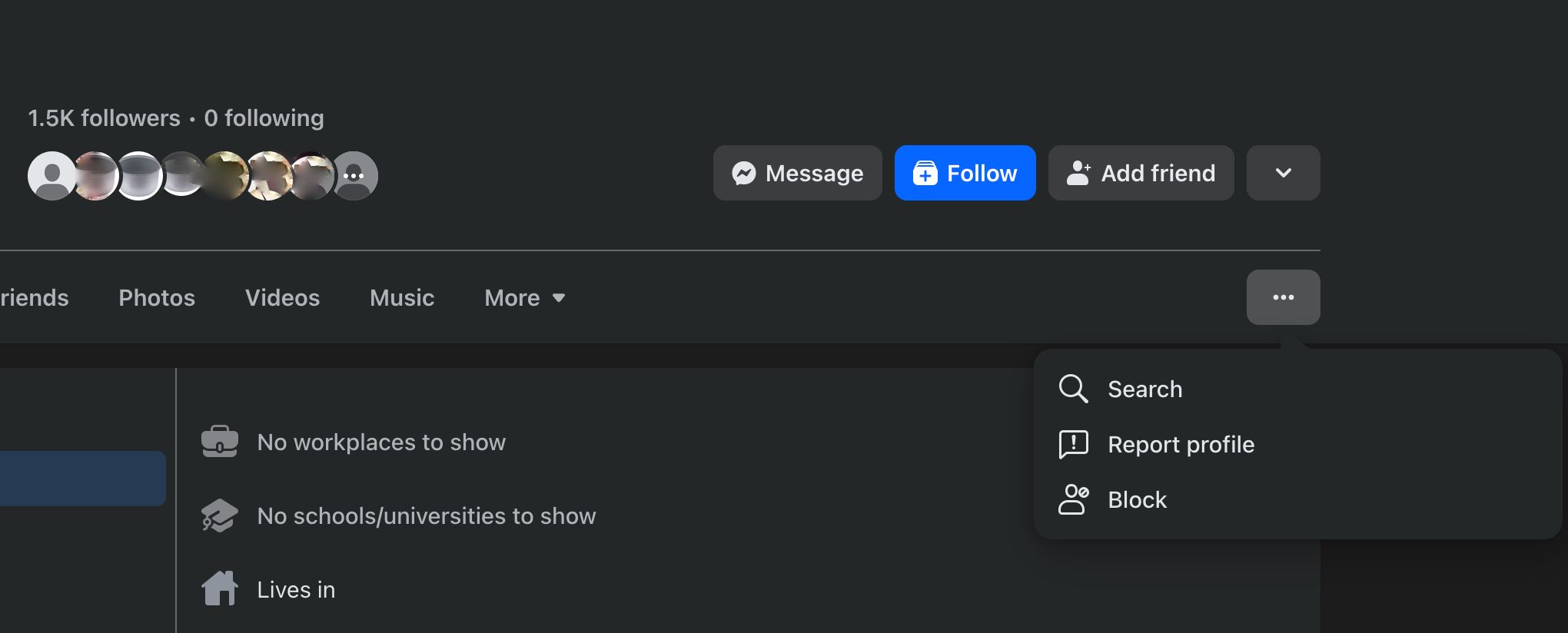
- Visit their Facebook profile or page
- Use the search bar at the top right of the page (or click on ... to show the search button) and type a keyword or a name (e.g., your target is a PEP's son, you might search the name of the PEP's son on PEP profile or page)
- Filter results by selecting “Posts” or other options to see what they’ve shared publicly.
If the account is private, you’ll only see content you’re allowed to view. For non-English posts, try translating keywords into the person's language.
⭐ Analyze Photos
Pictures on social media can reveal useful details:
- Search Photos Online: Use Google Images (images.google.com) to upload a photo and see if it appears elsewhere online.
- Check for Clues: Look for things like buildings, signs, or logos in photos to learn more about the location. Tip: Use Google Maps to match landmarks or place names you find in posts. Many platforms hide location data for privacy.
- Spot Fake Photos: If a photo looks pixelated or too vivid, it might not be real.
⭐ Spot Fake Accounts
Some accounts aren’t real—they might be bots or fake profiles. Here’s how to spot them:
- Check Profiles: Fake accounts often use generic photos (like a cartoon) or have no bio.
- Look at Posts: If they post a lot but get no likes or comments, they might be fake.
- Check Followers: Fake accounts might have lots of followers but follow random accounts.
- Spot Repeated Posts: If many accounts share the exact same post, they could be part of a fake network.
Be cautious—some real people have quiet accounts, so don’t assume too quickly.
⭐ Important note
Respect Privacy: Only look for information that’s publicly available. Private accounts may hide most details, and trying to access them without permission could break Facebook’s rules or laws.
Stay Safe: Avoid shady websites or tools that promise to “hack” or reveal hidden information—they might be scams or unsafe.
Check for Updates: Facebook changes how it works often, so some methods might stop working.
Be Ethical: Use these methods for legitimate reasons, like research or staying informed, and always follow your country’s privacy laws.